
Requirements
This version of WOL DualBoot supports Wake-on-LAN over Ethernet. It does not configure or diagnose Wake-on-Wireless-LAN/WoWLAN over Wi-Fi.
Wake-on-LAN must be supported and enabled by the motherboard, network adapter, BIOS/UEFI and operating system. The agent can inspect state and sometimes enable OS-level settings, but it cannot replace firmware configuration.
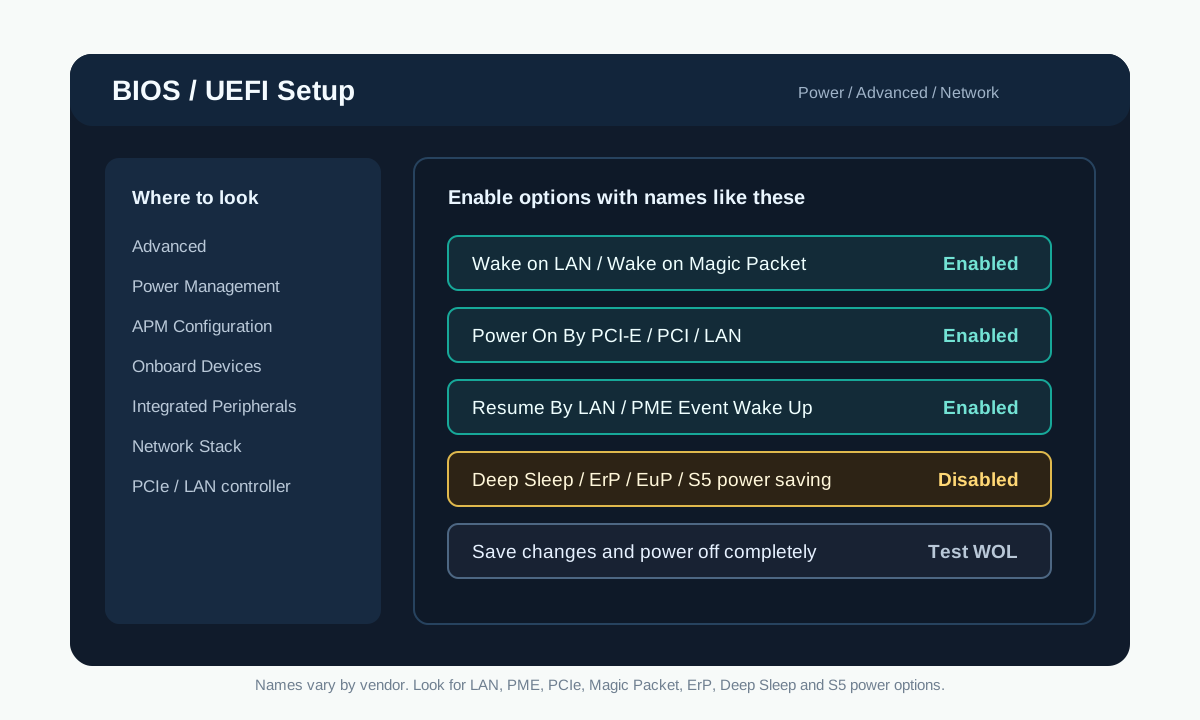
BIOS/UEFI
Firmware menus vary by vendor, but Wake-on-LAN settings are often under sections named Advanced, Power Management, APM Configuration, Onboard Devices, Integrated Peripherals, Network or PCIe.
Options that usually enable WOL
Look for options with names similar to Wake-on-LAN, Wake on Magic Packet, Power On By PCI-E/PCI/LAN, Resume By LAN, PME Event Wake Up or Wake from S5, and enable them.
Options that can block WOL
Also check power-saving options that can cut power to the network adapter while the computer is off. If present, options such as ErP, EuP, Deep Sleep, S5 maximum power saving or LAN power saving while powered off usually need to be disabled.
After changing BIOS/UEFI settings, save changes, fully power off the computer and test Wake-on-LAN from the app. If wake works from sleep but not from full shutdown, the remaining issue is usually firmware, network driver or operating-system power management.
Linux
On Linux, the agent attempts to enable Wake-on-LAN when the service starts because `ethtool -s <interface> wol g` is often not persistent across reboots.
Windows
On Windows, the agent inspects Wake-on-LAN state and exposes diagnostics. Automatic activation depends on driver and adapter behavior.
Dual boot
Rebooting into a specific OS is only enabled when the agent reports that the host supports the action safely.